Sprites
In RCBasic, sprites are 2D objects with built-in animation and physics
support. Their state is updated every time Update() is called.
Opening a Sprite Canvas
Sprites must be created while a Sprite Layer canvas is active.
Open one with OpenCanvasSpriteLayer():
sprite_canvas = OpenCanvasSpriteLayer(0, 0, 640, 480)
Canvas(sprite_canvas)
Creating a Sprite
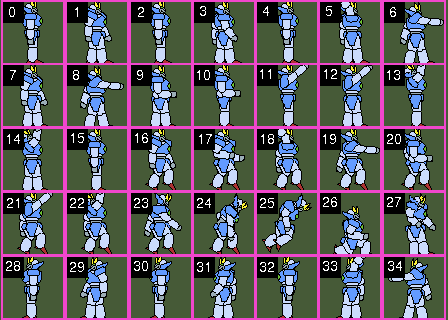
Load a sprite sheet (an image containing all animation frames) and create the sprite:
spriteSheet  = LoadImage("graizor.png")

frame_width  = 32
frame_height = 32

mySprite = CreateSprite(spriteSheet, frame_width, frame_height)
Sprite Sheet Frame Layout
Frames are numbered from 0, left-to-right then top-to-bottom:
[ 0 ][ 1 ][ 2 ][ 3 ]
[ 4 ][ 5 ][ 6 ][ 7 ]
...
Adding Animation
Create an animation with CreateSpriteAnimation() and assign frames
with SetSpriteAnimationFrame():
' CreateSpriteAnimation(sprite, num_frames, speed_fps)
walk_left = CreateSpriteAnimation(mySprite, 4, 12)

' Map animation frames to sprite-sheet indices
SetSpriteAnimationFrame(mySprite, walk_left, 0, 28)
SetSpriteAnimationFrame(mySprite, walk_left, 1, 29)
SetSpriteAnimationFrame(mySprite, walk_left, 2, 30)
SetSpriteAnimationFrame(mySprite, walk_left, 3, 31)
Play the animation (-1 loops forever):
SetSpriteAnimation(mySprite, walk_left, -1)
Sprite Physics
By default sprites are non-solid (no collisions). Enable physics with:
SetSpriteSolid(mySprite, TRUE)
Set gravity for the canvas:
' SetGravity2D(x, y) — positive Y pulls sprites downward
SetGravity2D(0, 30)
Static ground object (no image, just a physics body):
ground = CreateSprite(-1, 640, 100)       ' -1 = physics only, no image
SetSpriteSolid(ground, TRUE)
SetSpritePosition(ground, 0, 380)
SetSpriteType(ground, SPRITE_TYPE_STATIC) ' unmovable
Draw a visible ground rectangle on a paint canvas placed above the sprite layer:
paint_canvas = OpenCanvas(640, 480, 0, 0, 640, 480, 1)
SetCanvasZ(paint_canvas, 1)               ' draw on top

Canvas(paint_canvas)
SetColor( RGB(200, 0, 0) )
RectFill(0, 380, 640, 100)
Moving a Sprite with Keyboard Input
Use SetSpriteLinearVelocity() instead of SetSpritePosition()
for physics-enabled sprites:
If Key(K_RIGHT) Then
    SetSpriteLinearVelocity(mySprite, 30, 0)
End If
Note
Directly setting the position of a physics sprite bypasses the physics engine and can cause unexpected behaviour. Always use velocity or force functions when physics is enabled.
Complete Skeleton
OpenWindow("Sprite Demo", 640, 480, false, true)

sprite_canvas = OpenCanvasSpriteLayer(0, 0, 640, 480)
Canvas(sprite_canvas)

SetGravity2D(0, 30)

sheet    = LoadImage("graizor.png")
mySprite = CreateSprite(sheet, 32, 32)
SetSpriteSolid(mySprite, TRUE)
SetSpritePosition(mySprite, 100, 50)

walk = CreateSpriteAnimation(mySprite, 4, 12)
SetSpriteAnimationFrame(mySprite, walk, 0, 0)
SetSpriteAnimationFrame(mySprite, walk, 1, 1)
SetSpriteAnimationFrame(mySprite, walk, 2, 2)
SetSpriteAnimationFrame(mySprite, walk, 3, 3)
SetSpriteAnimation(mySprite, walk, -1)

ground = CreateSprite(-1, 640, 32)
SetSpriteSolid(ground, TRUE)
SetSpritePosition(ground, 0, 448)
SetSpriteType(ground, SPRITE_TYPE_STATIC)

paint_canvas = OpenCanvas(640, 480, 0, 0, 640, 480, 1)
SetCanvasZ(paint_canvas, 1)
Canvas(paint_canvas)
SetColor( RGB(80, 50, 20) )
RectFill(0, 448, 640, 32)

Canvas(sprite_canvas)

While NOT Key(K_ESCAPE)
    If Key(K_RIGHT) Then
        SetSpriteLinearVelocity(mySprite, 30, 0)
    ElseIf Key(K_LEFT) Then
        SetSpriteLinearVelocity(mySprite, -30, 0)
    End If
    Update()
Wend
See also
Sprites API — Full sprite function reference.
Sprite Animation API — Animation API.
Sprite Physics API — Physics API.